
You can begin night sky photography with the iPhone you already own. A sensible first goal is a sharp star field above a simple silhouette. Milky Way detail is a more demanding next step; results depend on your phone, the darkness of the location, and the conditions.
The quick-start checklist
- Choose a clear window after astronomical twilight, preferably with the Moon below the horizon for faint stars.
- Pick a familiar location away from direct lights, with a clear view toward the subject.
- Secure your iPhone on a tripod or a firm support and clean the camera lens.
- Open Photo mode, start with the main 1× camera, and check that Night mode is active.
- Use a shutter timer, leave the phone still throughout the capture, and inspect the result.
- Change one thing at a time: stability, focus, capture time, or composition.
NASA's smartphone astrophotography guide recommends a steady support, a timer to reduce vibration, and checking and locking focus. Those fundamentals are useful before you buy any extra equipment.
Choose a useful night and location
Start close to home so you can concentrate on the camera. Check access during daylight. Look for a simple foreground, a clear view above it, and a position shielded from headlights or security lights. A darkness map helps narrow the search; an on-site check tells you whether the spot actually works. Use the dark sky location guide when you are ready to scout farther away.
For stars and the Milky Way, plan for the time after astronomical twilight ends. The U.S. Naval Observatory defines that boundary using the Sun's center at 18° below the horizon. At some latitudes and seasons, the Sun never reaches it overnight. See the USNO twilight definitions and our guide to astronomical darkness and nautical twilight.
Then check the Moon during the hours you will photograph. A date near new moon is useful, but moonrise and moonset tell you whether you actually have moonless time. Compare the Moon's timing with your session, and check clouds across that same window.
Suppose astronomical darkness starts at 20:10, the Moon sets at 21:00, and cloud is forecast to arrive at 22:00. Your candidate moonless window is about 21:00–22:00, provided the subject is visible and the real sky agrees. Sunset alone would have sent you out too early.
For the Milky Way core, also check its direction and visibility from your location. A dark, moonless night cannot fix a core that is below the horizon or hidden behind a ridge. Follow the Milky Way planning guide to choose the date and foreground.
What to bring
- A stable support: a tripod with a secure phone clamp, or a firm surface where the phone cannot slide.
- A clean lens: a microfiber cloth for fingerprints or condensation.
- Enough power: a charged phone and a power bank for longer sessions.
- A way to work comfortably: warm layers, a small light for setup, and a known route back.
- A simple plan: the subject direction, useful time window, and a nearby fallback location.
Practice mounting the phone and finding the Camera controls indoors. In the field, aim for one successful composition rather than spending the clear window learning menus.
Set up the iPhone Camera app
1. Check Night mode on your camera
Open Camera in Photo mode. On a supported camera, Night mode activates in low light and its icon turns yellow. Camera support varies by iPhone model; check Apple's current Night mode instructions for your device. Start with the main 1× camera and frame a wide view rather than enlarging faint stars with digital zoom.
2. Keep the phone still
Settle the tripod before starting. In Camera controls, choose Timer and a short delay, such as 3 seconds. Wait until the full Night mode capture has finished before moving anything. Apple's camera tools guide explains how to find the timer. Wind, a flexible clamp, and an unstable support can spoil an otherwise good setup.
3. Check focus in a test photo
Try focusing on a distant bright object, then check the stars in the captured image at a larger size. To hold focus between frames, touch and hold the chosen focus area until AE/AF Lock appears; tap the screen to unlock it. See Apple's focus and exposure instructions. NASA's phone photography advice explains why autofocus can be troublesome in low light. A dark preview alone does not tell you how the final photo will look.
4. Compare the available capture times
Open Camera controls, choose Night mode, and compare the automatic time with Max, if offered. Apple's iPhone User Guide shows the current controls. Apple explains that Max extends capture time; the number beside the icon shows the time your phone will use. Let the actual result guide your choice. You do not need a specific number of seconds to begin.
5. Leave flash and Live Photos off
Apple notes that enabling flash or Live Photos deactivates Night mode. Check those controls if Night mode unexpectedly disappears. Flash will not illuminate distant stars and can light up nearby foreground objects instead.
Make the first frame useful
Take a test photo with a simple foreground and generous sky above it. Inspect three things: whether the stars are small points, whether the foreground has a clear shape, and whether a bright light dominates the frame.
If the automatic capture is sharp, try Max from the same position and compare. Keep the version with the most useful detail and acceptable star shapes. Then adjust the composition. A recognizable tree or ridge usually gives a first star photo more structure than an empty sky.
Save a short note: location, time, Moon position, selected camera, and capture time shown. Keep the original image. When you try again, those notes help you decide whether the improvement came from a darker sky, a steadier support, or a different setting.
Fix common problems
The entire image is blurred
First check stability. Repeat the same frame with a timer and a firmer support. If the foreground and stars are both soft, check for a dirty lens or condensation, then recheck focus. Changing capture time alone will not fix a shaking phone. For the forecast-to-equipment planning step, use the dew-point planning guide before your next session.
Stars are dots in one frame and streaks in another
Compare a shorter available capture. Check for movement during the longer frame. The sky also moves relative to a fixed camera, so judge the stars at the size you intend to share; a longer setting is useful only if its result suits the image.
The sky is bright but the Milky Way is missing
Check the sky before changing the camera: twilight, Moon, thin cloud, haze, and local light can all reduce contrast. Confirm that you aimed at the correct part of the Milky Way. If stars look sharp but faint structure is absent, a darker location or a better window may help more than extra capture time.
Night mode offers less time than expected
Secure the phone and inspect the current controls again. Use the time your phone offers for the scene. If a lamp is in the frame, recompose away from it and compare. Avoid treating a widely shared “30-second setting” as a promise for every phone, camera, and situation.
The sky looks artificial after editing
Return to the original and make smaller changes to brightness, contrast, and color. Inspect stars and dark areas while editing. Heavy sharpening or extreme brightness can make noise more visible; an attractive small image may not hold up at a large print size.
Photographing the Moon needs a different approach
The bright Moon is a different subject from faint stars. For a first lunar composition, try twilight and include a foreground. For visible lunar surface detail, check the Moon's exposure and reduce it if the disk is washed out. NASA's lunar photography guide discusses exposure, composition, and smartphone limits.
A wide phone camera gives the Moon little space in the frame. Detailed crater images generally need additional optical reach, such as a suitable telescope and phone adapter. Begin with a Moon landscape that works at your camera's natural view; our moonrise foreground guide helps with the composition.
Plan the window in DarkScout
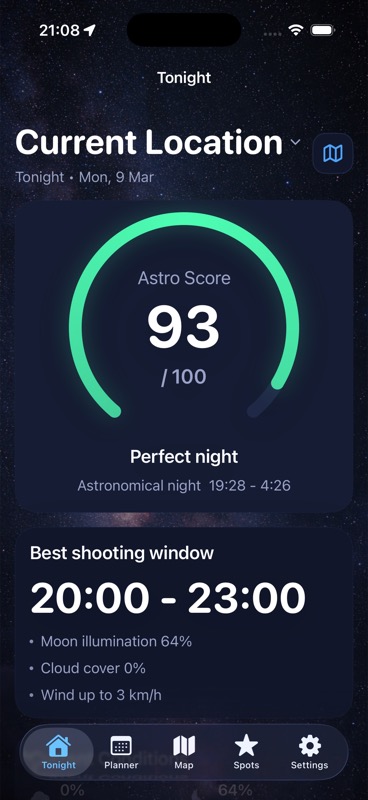
Use DarkScout to compare cloud forecasts, Moon conditions, and saved observing spots before you leave. Save a nearby practice location, check Tonight, and plan for the hours that fit your subject. The current App Store listing confirms that all features are free and the app requires iOS 26 or later.
Take the photo in your Camera app. On arrival, check the actual sky, focus, and support before relying on the plan. A forecast can help you choose a window; the test frame tells you what your phone can capture there.
Choose a better night for your first star photo.
Bring clouds, Moon timing, and saved spots into one plan.
Get DarkScout for iPhone All features free · iOS 26 or laterCommon questions
Can an iPhone photograph the Milky Way?
It is a reasonable subject to try from a dark location when the right part of the Milky Way is visible. Your result will depend on the camera, support, and sky. Begin with sharp stars and a clear composition, then aim for faint Milky Way detail.
Do I need a paid camera app?
Start with the built-in Camera app if your device supports Night mode. If you later need manual controls or a more advanced capture workflow, first identify the limitation you want to solve. You can learn the planning and stability fundamentals without buying an app.
Do I need exactly 30 seconds?
No. Compare the available automatic and Max settings and inspect the result. A sharp frame at a shorter time is more useful than a longer blurred one.
Sources and further reading
Camera instructions and app availability checked on October 14, 2026. Control layouts and supported cameras can change with iOS and iPhone models.
- Apple: Use Night mode on your iPhone
- Apple iPhone User Guide: Take Night mode photos
- Apple iPhone User Guide: Focus, exposure, and timer controls
- NASA: Astrophotography with your smartphone
- NASA: A Guide to Smartphone Astrophotography
- NASA: Lunar Photography Guide
- U.S. Naval Observatory: Rise, Set, and Twilight Definitions