
Prepare the information and light you need before observing. Use a dim light for the task, keep phone checks brief, and direct illumination away from other observers. A red appearance still needs a brightness check.
This guide concerns visual observing. For taking photographs, use the iPhone night-sky camera guide.
Allow the view to settle
The National Park Service's stargazing guidance recommends giving your eyes time to adapt and avoiding white light from phones, headlamps, and vehicles. Include that settling period in the outing rather than expecting the same faint view immediately after a bright interruption.
This routine does not provide a fixed recovery timer or a guarantee of what you will see. Keep the observing goal and actual conditions in mind.
Prepare before the watch
The AAVSO visual-variable-star manual describes preparing charts and equipment beforehand and using a shielded chart light. Apply that preparation principle to your own session:
- Choose essential tasks: the plan, chart, notes, and equipment adjustments you expect to need.
- Arrange the kit: keep frequently used items reachable before you settle in.
- Rehearse the phone route: open the needed view, adjust it, and practice returning to it.
- Agree with companions: discuss when and where a light will be used.
Keep a short written plan if that reduces repeated screen use. It can include the chosen sky window and a reference to the meteor observing log, rather than making every check a new search.
Set brightness separately from color
Apple's brightness instructions explain the iPhone slider in Control Center or Settings > Display & Brightness. Auto-Brightness can change the level as the surroundings change. Dark Mode changes the color scheme; Night Shift makes display colors warmer. These are different controls, so check the actual result rather than treating a mode name as a brightness setting.
Apple's display accessibility guidance describes Reduce White Point reducing bright-color intensity and Color Tint changing hue and intensity. Color filters can also change how pictures look. If you use these controls, rehearse them before the session and keep a way to restore the display.
Check the complete path you intend to use: opening the plan, a menu, another app, and returning. Note any bright transition. A red app view does not demonstrate how a different screen will appear.
Keep red light dim and directed
The British Astronomical Association's visual-observing tips recommend a dim red torch for charts and equipment. They specifically warn that a bright red bicycle light can still affect dark adaptation. Red is not permission to use an unnecessarily bright lamp.
Illuminate the task, keep the light out of companions' faces, and put it away when finished. The BAA also recommends unpacking at the start to avoid repeated vehicle courtesy-light interruptions while others observe.
Choose an action after an interruption
| What happens | Useful next action |
|---|---|
| A red screen is still too bright | Check brightness as well as color; repeat the actual screen path. |
| A menu or app exit exposes a bright screen | Revise the phone routine before the next observing interval. |
| The red lamp lights other observers | Reduce or redirect its use toward the task. |
| Headlights interrupt the view | Allow time back in the dark; note the interruption without assigning a guaranteed recovery time. |
| You need more light for a necessary task | Pause observing, use the light you need, then return to the sky when ready. |
Copy the light-plan worksheet
Use this as an individual or shared preparation record.
- Task: what requires a chart, screen, or equipment light?
- Source: which device or lamp, and where will it be used?
- Controls: brightness, appearance, and how to return to the prepared view.
- Flow check: the screens and transitions actually checked, plus unresolved ones.
- Session note: interruptions and one change for the next outing.
AAVSO's manual also keeps conditions and unusual circumstances with the observation record. Follow the protocol for your observing activity; this light plan is a preparation aid.
Bring the sky plan with you
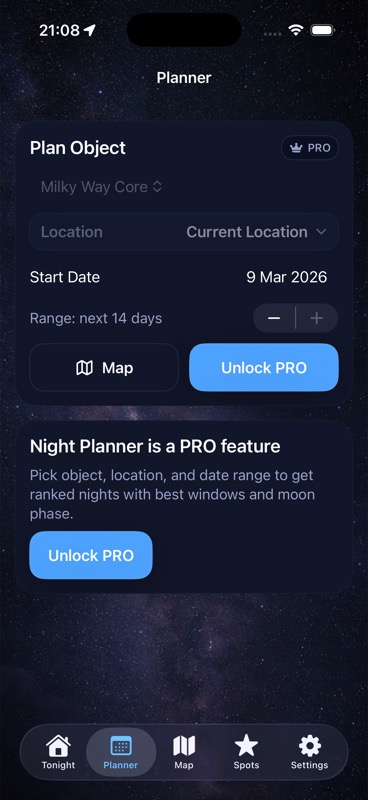
Use DarkScout to compare Moon, clouds, and an observing location before heading out. Its red appearance and the meteor counter's red controls do not set the phone's hardware brightness. Check the actual device and the screen path you will use. The Planner image above illustrates sky planning.
The current App Store listing describes the free iPhone app, requiring iOS 26 or later.
Keep the sky plan ready.
Compare Moon and cloud conditions, choose the spot, and keep the essential plan ready.
Get DarkScout for iPhone All features free · iOS 26 or laterSources and further reading
Sources and display instructions checked November 2, 2026. Recheck the controls on your own device.
- NPS: Stargazing 101 — adaptation and consideration around lights.
- BAA: Hints and Tips for Visual Observing — dim red light and observing etiquette.
- AAVSO: Manual for Visual Observing of Variable Stars, printed pages 5 and 38 — preparation, shielded chart light, and records.
- Apple: Adjust brightness on iPhone or iPad — brightness and appearance controls.
- Apple: Display and Text Size Preferences — Reduce White Point, Color Tint, and filters.