
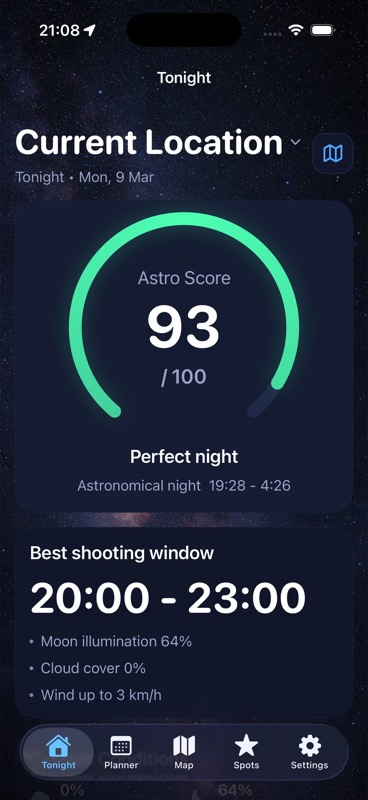
Recheck the forecast before a decision commits more of your time: choosing the trip, leaving, and starting the planned capture. Check again after a relevant change during the session. Compare the same location and observing hours each time, then decide whether to continue, shorten, change the target, or defer.
The useful result is a revised plan. Repeatedly reopening a weather icon without recording what changed gives you little basis for that decision.
Name the decision before opening the forecast
Write down the subject, the interval you can actually use, and the next commitment. Are you shortlisting a night, packing for a drive, or about to begin another sequence? Keep an alternative beside it: a nearby session, a different subject, or another date.
Choose the requirement you will reassess. For example, your plan might need an uninterrupted capture interval after setup. Use the short-session guide to budget that interval, and the cloud-planning guide to consider the subject. This guide concerns how to compare updates to that plan.
Why a useful forecast can change
The Bureau of Meteorology explains that forecasts are updated as observations, model guidance, and expert assessment become available. Later information can narrow earlier possibilities or introduce others. A changed forecast is part of the process; retain the earlier entry so you can identify the change relevant to your outing.
ECMWF identifies uncertainty in initial conditions and approximations in atmospheric models. It describes ensemble forecasts as multiple possible realizations for one forecast time and location. A single newer prediction still has uncertainty. Avoid turning an update into a guarantee, or treating an ordinary planning score as an ensemble probability.
Keep forecast time and checking time separate
ECMWF's forecast-data documentation distinguishes reference time from validity time and defines forecast-interval boundaries. For the product you use, read its own label definitions and keep three entries:
- Forecast metadata: the supplied reference, issue, or update label and what the provider says it means. Leave unknown labels unresolved.
- Valid time: the dated instant or interval the value describes.
- Checked at: when you viewed or saved the entry.
Do not substitute your viewing time for a missing issue time. Reloading a display does not establish a new model run. For an overnight session, keep the full dates and time convention using the time-zone guide.
Compare matching entries before judging the change
- Hold the location fixed. Confirm that both entries describe the intended observing place.
- Hold the session fixed. Compare the same valid hours, rather than a daily summary with one hourly value.
- Keep the definitions. Retain the field name, units, interval, and product legend.
- Record the difference. Write which requirement is still met, has become doubtful, or is no longer met.
- Choose an action. Accept the current plan, adjust it, or defer it; name the next checkpoint.
Hypothetical planning example: you budgeted one continuous capture interval. The later forecast shifts the promising gap outside your available time. Even if the night still has a favorable daily icon, your original interval no longer follows from that forecast. Compare the shorter backup plan rather than quietly moving your return deadline. This is an invented decision example, not a forecast or field result.
Several agreeing apps may share inputs
BOM documents that its website and app share underlying observations and forecast-model information, which other services may also use. The planning inference is limited: agreement between interfaces does not by itself prove independent inputs. Note the provider or model where disclosed, and leave unknown provenance unknown. Do not count app icons as independent votes.
Use checkpoints around commitments
| Checkpoint | Decision to make |
|---|---|
| When shortlisting the night | Define the desired interval and keep an alternative. |
| Before leaving for the spot | Compare the current entry with the saved plan. Is the trip still justified? |
| On arrival, before the main capture | Check the actual view and whether the intended session still fits. |
| After a relevant change during the run | Reassess the remaining interval before committing another sequence. |
| When labels or sources are incomparable | Resolve the mismatch before calling it an improvement or deterioration. |
These are editorial planning checkpoints, not an official update timetable. Choose your next review around the decision you face; this guide does not prescribe a universal checking interval.
Keep the actual view beside the prediction
The Met Office describes observations as measurements of current conditions, which feed models that simulate later weather; forecasters refine the outputs. Keep those categories separate in your session notes.
On site, record what you can actually see toward the subject and when you checked it. If it differs from the plan, write the difference before changing the setup or sequence. An observation at that moment is not proof of what the rest of the night will bring.
Copy the forecast-update record
- Session: private spot reference, subject, dated usable interval, and next commitment.
- Source: product link, provider or model where disclosed, and legend.
- Times: metadata as supplied, valid interval, zone or UTC, and checked-at time.
- Comparison: earlier entry, current entry, matching definitions, and material difference.
- Field check: separate dated observation and its direction.
- Decision: continue, adapt, or defer; next checkpoint and backup plan.
Bring the session constraints together
Use DarkScout's available cloud, Moon, observing-spot, and target-window context to compare the session. Keep your update record alongside it. A freshly loaded app display does not establish the forecast model's issue time. The Tonight image above illustrates planning context.
The current App Store listing offers the free iPhone app, requiring iOS 26 or later.
Review the window before committing the trip.
Compare cloud and Moon context with your observing spot and available hours.
Get DarkScout for iPhone All features free · iOS 26 or laterSources and further reading
Forecast definitions, primary guidance, and public app information checked November 7, 2026.